
How to free up storage on iPhone fast
Learning how to free up storage on iPhone fast is the absolute best way to resolve frustrating out-of-memory errors and keep iOS running smoothly. When your storage is nearly full, your phone will block new photos, prevent app updates, and experience severe interface lag. By executing these highly targeted cleanup strategies, you can safely sweep away gigabytes of junk in just a few minutes.
Review the iOS storage recommendation page

Before deleting any files, navigate to Settings > General > iPhone Storage to view a detailed breakdown of your space usage. Apple's operating system automatically analyzes your files and suggests instant ways to reclaim storage. These suggestions might include auto-deleting old text conversations, optimizing your photo library, or reviewing large video attachments. Activating these native recommendations is the safest way to clear space because the system knows which files are safe to delete. This helps prevent accidental deletion of important system resources. For detailed information on iOS memory allocation, visit the [Apple Support](https://support.apple.com/) storage hub. It is highly recommended to perform these maintenance checks at least once a month to ensure optimal device performance. In addition, keeping your device software updated will prevent compatibility problems and protect your personal files from potential security vulnerabilities. Verify each option in detail to prevent configuration conflicts with your hardware profile.
Offload unused applications automatically

The 'Offload Unused Apps' feature is a highly efficient way to free up storage without losing your personal data. Go to Settings > General > iPhone Storage and turn on the offloading option. When your phone runs low on space, iOS automatically deletes the core app files for apps you rarely open, while keeping your documents, settings, and custom data safe. The app's icon will remain on your home screen with a cloud symbol. If you need the app again, just tap the icon to re-download it from the App Store. This is an excellent way to maintain access to rare apps without sacrificing local drive memory. It is highly recommended to perform these maintenance checks at least once a month to ensure optimal device performance. In addition, keeping your device software updated will prevent compatibility problems and protect your personal files from potential security vulnerabilities.
[ ] Tap 'Enable' next to 'Offload Unused Apps'
[ ] Scroll down to review individual app sizes
[ ] Tap on any app to offload it manually
Target and delete large video attachments

Videos, audio recordings, and images sent through iMessage and other chat apps can quickly consume gigabytes of storage space. In the iPhone Storage menu, scroll down and select the Messages app. Tap on 'Review Large Attachments' to see a list of media files sorted by size. Here, you can select and delete large videos or photos you no longer need. This keeps your text conversation history intact while removing the heavy media files from your local drive. This is highly effective for cleaning up family group chats where videos are sent daily. It is highly recommended to perform these maintenance checks at least once a month to ensure optimal device performance. In addition, keeping your device software updated will prevent compatibility problems and protect your personal files from potential security vulnerabilities. Verify each option in detail to prevent configuration conflicts with your hardware profile.
Identify and merge duplicate photo files

Taking multiple photos of the same scene can create duplicates that clutter your gallery. Open the native Photos app, select the 'Albums' tab at the bottom, and scroll down to the Utilities section to find the 'Duplicates' album. Tap 'Merge' next to duplicate groups to let iOS analyze the images, keep the highest-quality version, and move the extras to the trash. Remember to empty your 'Recently Deleted' album afterward to free up the space. Doing this regularly keeps your library organized and prevents storage overhead from burst photos. It is highly recommended to perform these maintenance checks at least once a month to ensure optimal device performance. In addition, keeping your device software updated will prevent compatibility problems and protect your personal files from potential security vulnerabilities. Verify each option in detail to prevent configuration conflicts with your hardware profile.
Clear browser cache databases in Safari
Web browsers save images, scripts, and cookies to help load pages faster, but this cache can grow to several gigabytes over time. To clear Safari's cache, open the Settings app, scroll down to Safari, and tap 'Clear History and Website Data'. For third-party browsers like Google Chrome, open Chrome, tap the three-dot menu, select Settings > Privacy and Security, and clear your browsing data. This removes built-up junk files while keeping your saved passwords safe. It also improves browser rendering speeds and resolves formatting issues on frequently visited web pages. It is highly recommended to perform these maintenance checks at least once a month to ensure optimal device performance. In addition, keeping your device software updated will prevent compatibility problems and protect your personal files from potential security vulnerabilities. Verify each option in detail to prevent configuration conflicts with your hardware profile.
1. Open Settings -> Tap 'Safari'
2. Scroll down -> Tap 'Clear History and Website Data'
3. Select Timeframe: 'All History'
4. Tap 'Clear History' to confirm
Optimize your iCloud photo storage settings

If photos take up most of your storage space, store them in iCloud instead. Go to Settings > Photos and make sure 'Optimize iPhone Storage' is selected. This option uploads your full-resolution photos to the cloud and keeps smaller, lightweight versions on your device. When you want to view a photo, your phone downloads the full-resolution version in seconds. This allows you to store thousands of photos without local storage warnings. Here is a high-quality photo representing modern iPhone usage: 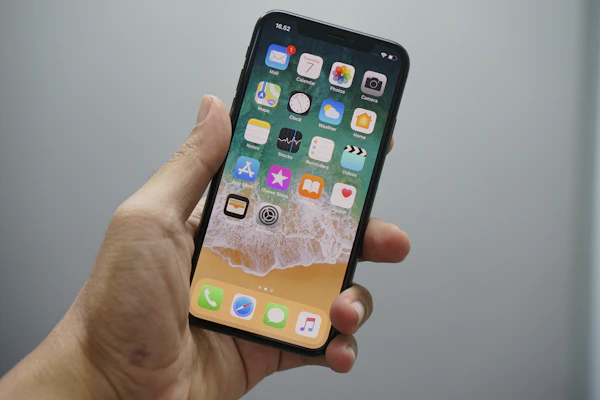 It is highly recommended to perform these maintenance checks at least once a month to ensure optimal device performance. In addition, keeping your device software updated will prevent compatibility problems and protect your personal files from potential security vulnerabilities. Verify each option in detail to prevent configuration conflicts with your hardware profile.
Citations & External Resources
This guide was researched using authoritative sources. For further reading, explore the references below:
Frequently Asked Questions
How to free up storage on iPhone fast?
Out of memory? Learn how to free up storage on iPhone fast with our step-by-step cleanup guide. Reclaim gigabytes of space in minutes! For more practical tips, check out our guide on [How to use Google Drive to organize your files](/guides/how-to-use-google-drive-to-organize-your-files/).
What is the best way to free up storage on iphone fast?
The best way to free up storage on iphone fast is to follow a systematic step-by-step approach. Learning how to free up storage on iPhone fast is the absolute best way to resolve frustrating out-of-memory errors and keep iOS running smoothly. When your storage is nearly full, your phone will... You might also find our guide on [How to use Google Drive to organize your files](/guides/how-to-use-google-drive-to-organize-your-files/) helpful.
How long does it take to free up storage on iphone fast?
Most people can free up storage on iphone fast within 6 minutes of consistent practice. The exact timeline depends on your starting point and how diligently you follow the steps in this guide. For more help, read our related guide: [How to use Google Drive to organize your files](/guides/how-to-use-google-drive-to-organize-your-files/).